
ARC RAIDERS
FAQ&1:1문의
자주 묻는 질문
계정 · 보안
A
Embark ID는 ARC Raiders 플레이에 반드시 필요한 계정으로, 장비·진행 상황·꾸미기 아이템을 저장합니다.
이를 통해 Steam, PlayStation 5, Xbox Series X|S 등 플랫폼을 바꿔도 진행 상황을 잃지 않고 이어서 플레이할 수 있고, 다른 플랫폼을 쓰는 친구와도 함께 플레이할 수 있습니다.
[Embark ID 연동하기]
이를 통해 Steam, PlayStation 5, Xbox Series X|S 등 플랫폼을 바꿔도 진행 상황을 잃지 않고 이어서 플레이할 수 있고, 다른 플랫폼을 쓰는 친구와도 함께 플레이할 수 있습니다.
[Embark ID 연동하기]
넥슨 구매/결제
넥슨닷컴에서 구매한 레이더 토큰은 환불(청약철회)할 수 있나요?
A
네, 구매 후 7일 이내이고 '구매 확정' 전이라면 게임 내 수신함에서 '청약 철회' 버튼으로 환불받을 수 있습니다.
넥슨 플랫폼에서 구매하신 레이더 토큰은 게임 내 '수신함'으로 발송됩니다. (수신함은 로비 우측 상단에 위치합니다)
수신함에서 '구매 확정'을 누르면 상품을 수령하실 수 있으며, 구매 확정 시 청약 철회가 불가능합니다.
※ 구매 확정 시 청약 철회가 불가능합니다.
※ 구매 후 7일이 경과하면 자동으로 구매 확정 처리되어 청약 철회 및 환불이 불가능합니다.
게임 정보
아크 레이더스 넥슨닷컴 & PC방 정식 런칭 안내
A
안녕하세요. 레이더 여러분!
이제 곧 아크 레이더스를 넥슨 홈페이지와 넥슨 PC방에서 이용할 수 있습니다.
5월 14일(목)부터 사전 예약 이벤트가 진행되며, 다양한 경품을 획득할 수 있는 PC방 럭키 드로우 이벤트, 아크 레이더스 에디션 할인 판매 등 풍성한 혜택이 기다리고 있으니 많은 관심과 참여 부탁드립니다.
그리고, 5월 28일(목) 아크 레이더스 넥슨 서비스 오픈에 관한 게임 이용의 궁금증을 조금이나마 해소해드리고자 다음과 같이 FAQ를 준비하였으니 참고해주시기 바랍니다.
아크 레이더스 넥슨 서비스 FAQ
- Q. 사전예약을 철회할 수 있나요?
고객센터를 통해 철회를 요청하실 수 있습니다. 다만 철회 후에는 같은 휴대폰 번호를 다른 넥슨 ID에 사용할 수 없으며,
같은 넥슨 ID로 다른 번호로 재참여하는 것도 불가하오니 신중하게 결정해 주세요.
- Q. 스팀에서 이미 구매했는데, 넥슨 ID로 플레이할 수 있나요?
스팀 플랫폼에서 구매하여 이미 아크 레이더스를 플레이하고 계신 경우
Embark 홈페이지에서 넥슨 ID를 연동할 수 있으며, 플레이 진척도가 공유됩니다.
⚠️단, 연동한 넥슨 ID로 플레이하기 위해서는 ① PC방에 방문하거나 ② 넥슨 홈페이지에서 구매한 에디션을 통해서만 가능합니다.
- Q. 넥슨 홈페이지에서 에디션(패키지)을 구매하면 스팀에서도 플레이할 수 있나요?
넥슨 홈페이지에서 구매한 에디션은 넥슨 홈페이지를 통해서만 플레이 할 수 있습니다.
스팀 플랫폼에서 접속하여 플레이하기 위해서는 스팀 플랫폼에서 아크 레이더스를 구매해야만 합니다.
- Q. 넥슨 홈페이지에서 판매하는 에디션(패키지)은 스팀과 차이가 있나요?
스팀과 넥슨에서 판매하는 에디션은 동일한 구성입니다.
넥슨 홈페이지를 통해서만 접속이 가능하며, 5월 28일 정식 런칭 기념 할인 판매를 계획하고 있습니다.
- Q. 스팀/넥슨 매치 메이킹이 분리가 되나요?
플랫폼에 관계없이 동일한 서버에서 매칭됩니다.
넥슨, 스팀, PlayStation, Xbox 등 어떤 플랫폼을 사용하는 플레이어와 함께 플레이할 수 있습니다.
- Q. 스팀 친구와 함께 플레이 할 수 있나요?
플랫폼에 관계없이 친구와 함께 플레이할 수 있습니다.
- Q. 스팀에서 플레이 한 진척도가 공유되나요?
게임 진행 상황은 Embark ID를 기준으로 저장됩니다.
스팀과 넥슨 모두 동일한 Embark ID에 연동하면 장비, 진행 상황, 꾸미기 아이템 등이 모두 공유됩니다.
- Q. PC방에서 무료 플레이 할 수 있다면, PC방 요금도 무료인가요?
PC방 무료 플레이는 ARC Raiders 에디션(패키지)을 구매하지 않아도 넥슨 PC방에서 게임을 즐길 수 있다는 의미입니다.
PC방 이용 요금은 게임과 별개로 각 PC방 매장에서 부과하는 점 참고하시기 바랍니다.
- Q. PC방 베타 서비스가 무엇인지 궁금해요.
넥슨닷컴 & PC방 정식 런칭에 앞서 원활한 PC방 서비스 제공을 위해
5월 21일(목)부터 28일(목)까지 PC방 베타 서비스를 운영하게 되었습니다.
넥슨 PC방에서는 에디션 구매 없이 아크 레이더스를 무료로 플레이할 수 있으며,
PC방 오류 제보 이벤트를 비롯한 다양한 이벤트에 참여할 수 있습니다.
많은 참여와 소중한 오류 제보 부탁드리며, 안정적인 서비스 제공을 위해 노력하겠습니다.
감사합니다.
넥슨 이벤트
PC방 일일 출격 미션
A
Q. PC방 일일 출격 미션은 어떻게 참여하나요?
넥슨 가맹 PC방에서 ARC Raiders를 실행하면 미션이 자동으로 시작됩니다. 아래 순서로 미션을 달성하고 각 단계의 보상을 수령해주세요.
① PC방에서 아크 레이더스 접속 → 붕대 x3, 실드 충전기 x3
② 1시간 플레이 → 레이더 해치 열쇠 x1
③ 2시간 플레이 → 노획 마크1 x1, 경량 실드 x1, 래틀러 IV x1
※ 미션 조건은 PC방에서 달성해야 하지만, 보상 수령은 다른 환경에서도 가능합니다.
Q. PC방에서 플레이했는데 미션 시간이 인식되지 않아요.
PC방 인식에는 최대 10분이 소요될 수 있습니다. 접속 후 잠시 기다린 뒤 다시 확인해주세요. 게임을 종료하거나 연결이 끊긴 경우 플레이 시간이 정확하게 집계되지 않을 수 있습니다.
Q. 일일 출격 미션 보상은 매일 초기화되나요?
일일 출격 미션 보상은 매일 00:00에 초기화됩니다. 이전 날 미션을 완료하지 못했더라도 다음 날 새롭게 참여할 수 있습니다.
※ 당일 미션 보상을 수령하지 않으면 00:00 초기화 시 소멸됩니다. 반드시 당일 내에 수령해주세요.
Q. 미션 보상을 수령했는데 게임 내 아이템이 보이지 않아요.
이벤트 페이지에서 보상 버튼을 클릭했지만 게임 내 수신함에서 아이템이 보이지 않는 경우는 게임 재접속 또는 레이드 완료 후 스페란자로 복귀하면 수신함에서 확인할 수 있습니다.
위와 같은 조치 이후에도 여전히 아이템이 보이지 않는다면 넥슨 고객센터로 문의해주세요.
[넥슨 고객센터]
넥슨 가맹 PC방에서 ARC Raiders를 실행하면 미션이 자동으로 시작됩니다. 아래 순서로 미션을 달성하고 각 단계의 보상을 수령해주세요.
① PC방에서 아크 레이더스 접속 → 붕대 x3, 실드 충전기 x3
② 1시간 플레이 → 레이더 해치 열쇠 x1
③ 2시간 플레이 → 노획 마크1 x1, 경량 실드 x1, 래틀러 IV x1
※ 미션 조건은 PC방에서 달성해야 하지만, 보상 수령은 다른 환경에서도 가능합니다.
Q. PC방에서 플레이했는데 미션 시간이 인식되지 않아요.
PC방 인식에는 최대 10분이 소요될 수 있습니다. 접속 후 잠시 기다린 뒤 다시 확인해주세요. 게임을 종료하거나 연결이 끊긴 경우 플레이 시간이 정확하게 집계되지 않을 수 있습니다.
Q. 일일 출격 미션 보상은 매일 초기화되나요?
일일 출격 미션 보상은 매일 00:00에 초기화됩니다. 이전 날 미션을 완료하지 못했더라도 다음 날 새롭게 참여할 수 있습니다.
※ 당일 미션 보상을 수령하지 않으면 00:00 초기화 시 소멸됩니다. 반드시 당일 내에 수령해주세요.
Q. 미션 보상을 수령했는데 게임 내 아이템이 보이지 않아요.
이벤트 페이지에서 보상 버튼을 클릭했지만 게임 내 수신함에서 아이템이 보이지 않는 경우는 게임 재접속 또는 레이드 완료 후 스페란자로 복귀하면 수신함에서 확인할 수 있습니다.
위와 같은 조치 이후에도 여전히 아이템이 보이지 않는다면 넥슨 고객센터로 문의해주세요.
[넥슨 고객센터]
계정 · 보안
넥슨ID와 Embark ID는 어떻게 연동하나요?
A
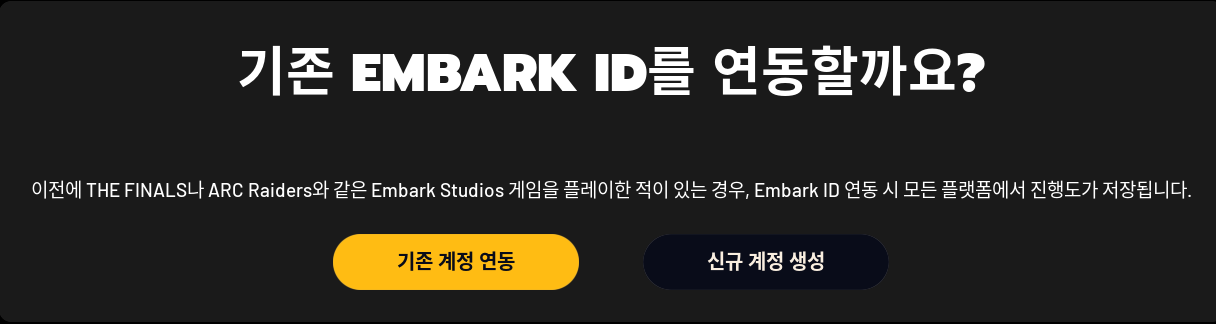
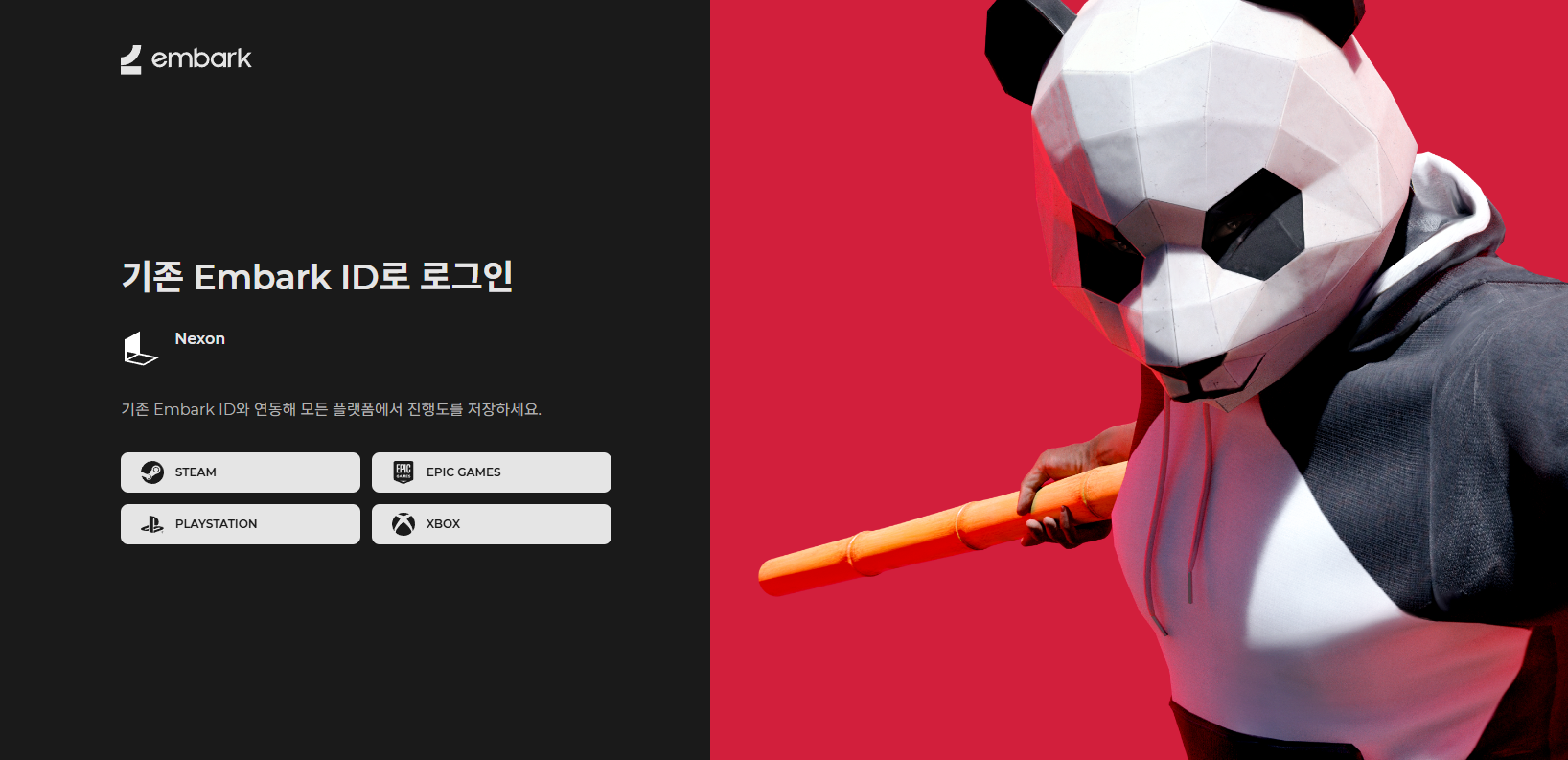
넥슨닷컴이나 PC방에서 게임에 처음 접속하면 나오는 연동 화면에서 [기존 계정 연동] 또는 [신규 계정 생성] 중 하나를 선택하면 됩니다.
기존에 테스트에 참여하여 ARC Raiders 또는 THE FINALS 플레이 경험이 있다면,
Embark ID가 존재하며 [기존 계정 연동] 버튼을 클릭하여 넥슨ID와 연동할 수 있습니다.
1. 계정 연동 선택
2. 기존에 연동된 플랫폼 선택
⚠️ 신규 계정 생성
1. 해당 버튼을 클릭하면, 계정 생성 및 약관 동의 과정을 진행할 수 있습니다.
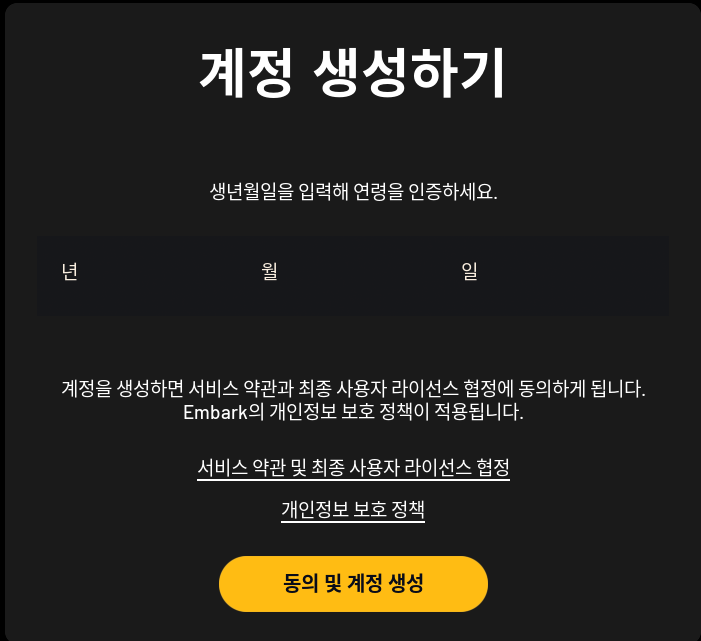
2. 이어서 프로필 표시 이름을 만들면 다음과 같이 계정 연동이 완료됩니다.
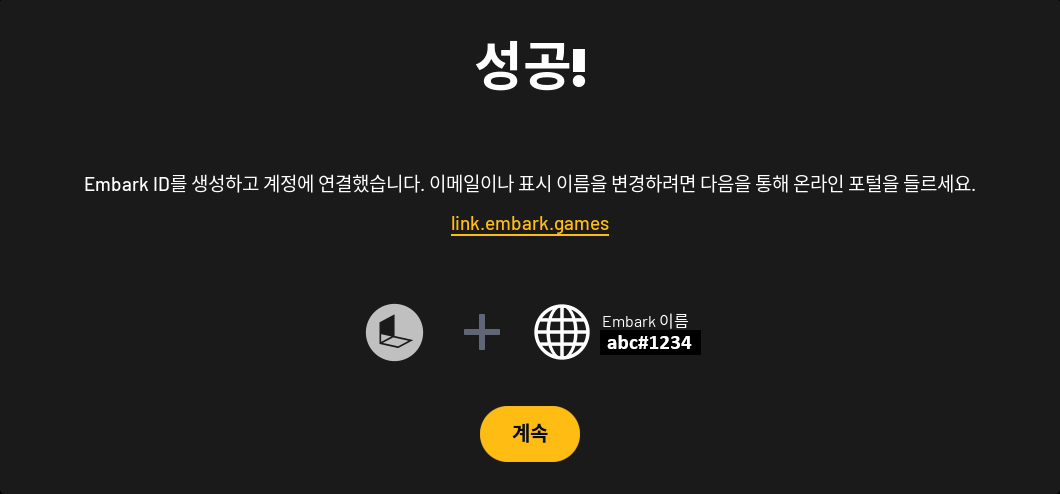
=주의사항=
※ 넥슨ID로 본 게임에 최초 접속하는 과정에서 신규 Embark ID를 생성하여 연동을 완료한 경우,
해당 넥슨ID는 다른 Embark ID와 연동할 수 없습니다.
※ Embark ID 연동에 관한 추가 문의사항은 아래의 Embark 고객센터를 이용해주세요.
게임 정보
아크 레이더스(ARC Raiders)는 어떤 게임인가요?
A
아크 레이더스(ARC Raiders)는 황폐해진 미래의 지구를 배경으로 하는 멀티플레이 익스트랙션 어드벤처 게임입니다.
현재 우리가 알고 있는 세계는 거의 사라졌습니다.
정체불명의 기계 '아크(Arc)'가 지상에서의 정착을 위협하면서 사람들은 살아남기 위해 지하로 숨어들었고, 대부분은 하루하루를 버티며 살아가고 있습니다.
여러분은 레이더(Raiders)가 되어,
홀로 또는 동료와 함께 잃어버린 세계의 잔해를 찾아 지상으로 떠나게 됩니다.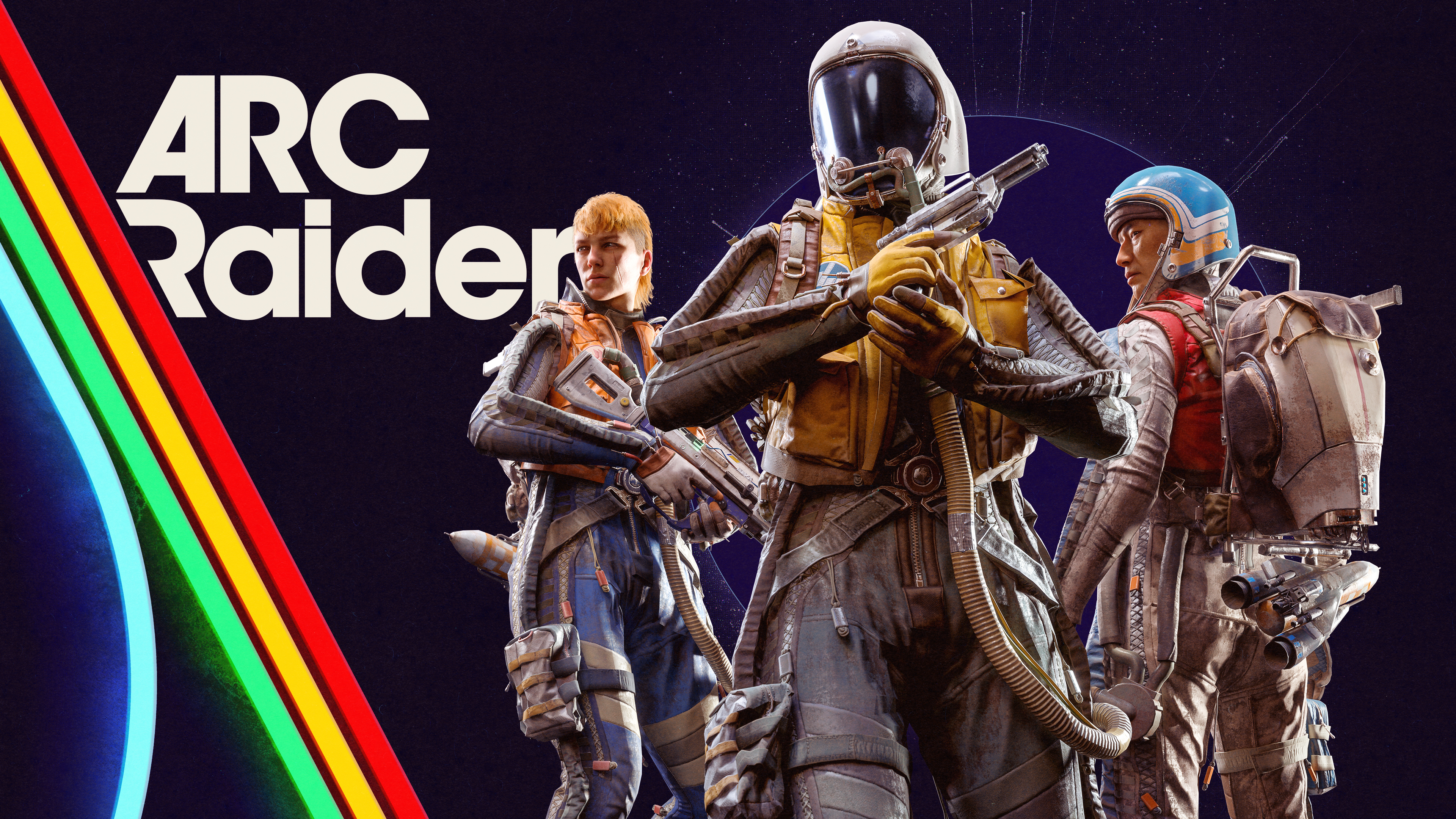
게임 정보
아크 레이더스의 ARC(아크)란 무엇인가요?
A
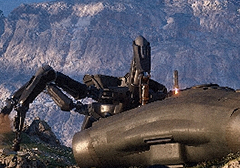
ARC(아크)는 세상을 황폐화시킨 정체불명의 기계 세력입니다.
작은 거미형 틱과 정찰용 스니치부터 거대한 보스급 퀸까지 다양한 형태로 존재합니다.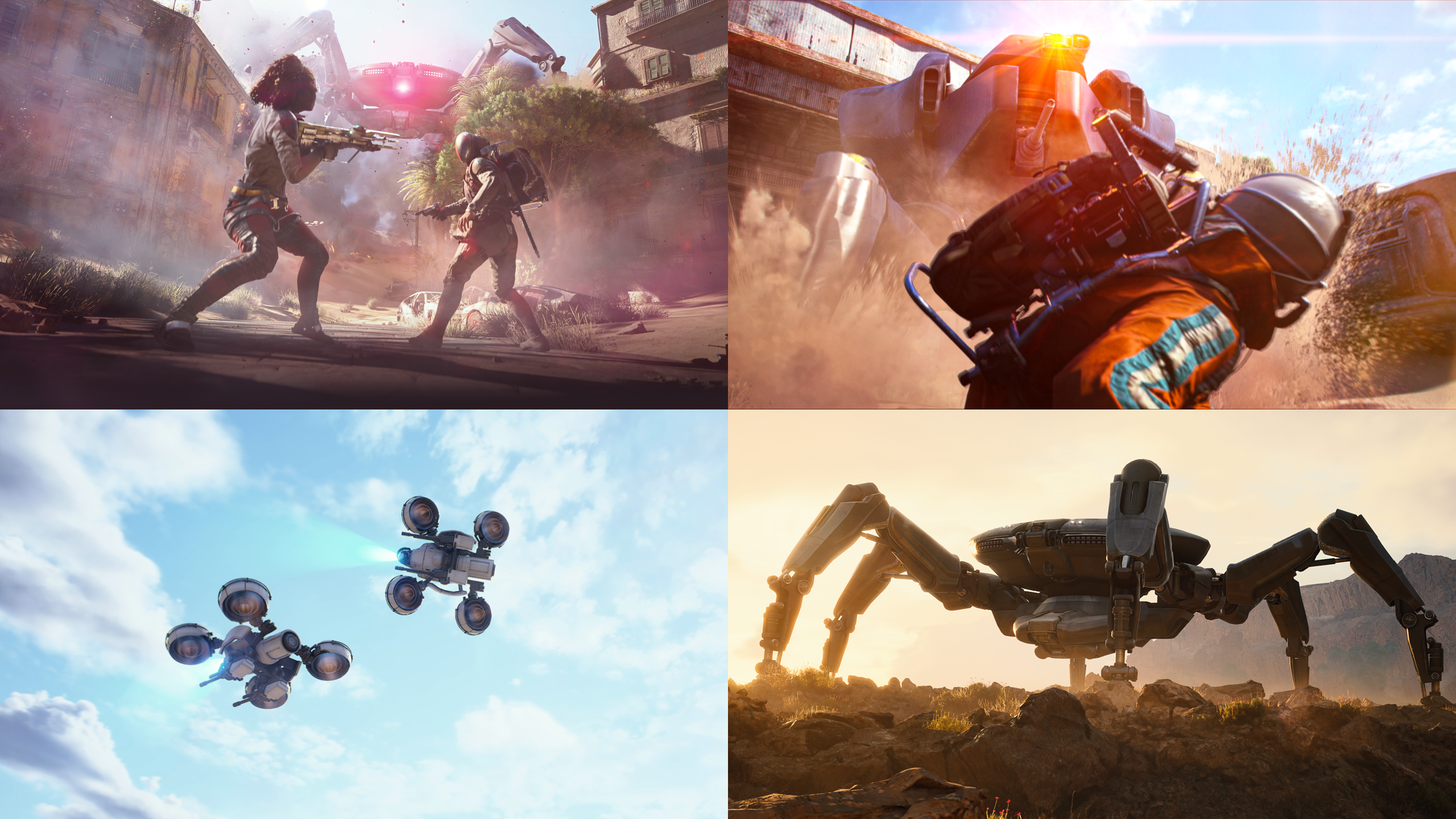
게임 정보
아크 레이더스의 스페란자란 무엇인가요?
A
스페란자는 지상의 ARC 위협을 피해 인간들이 지하에 만든, 비교적 안전한 거주지입니다.
레이더들은 지상에서의 활동 후 이곳으로 돌아오며, 다양한 활동을 수행하고 자신만의 개인 공간을 꾸밀 수 있습니다.
작업장
작업장에서는 장비와 무기를 업그레이드하고, 제작하고, 수리할 수 있습니다. 작업장 자체도 업그레이드할 수 있으며, 더 많고 더 좋은 장비를 제작할 수 있게 됩니다.
상인
스페란자의 상인들은 커뮤니티의 중심 인물이며, 서로 다른 목적을 가지고 있습니다.
그들은 러스트 벨트의 이야기를 들려주는 퀘스트를 주고, 자신들을 도와준 것에 대한 보상을 제공합니다. 또한 아이템을 거래하거나 필요 없는 아이템을 구매해 줍니다.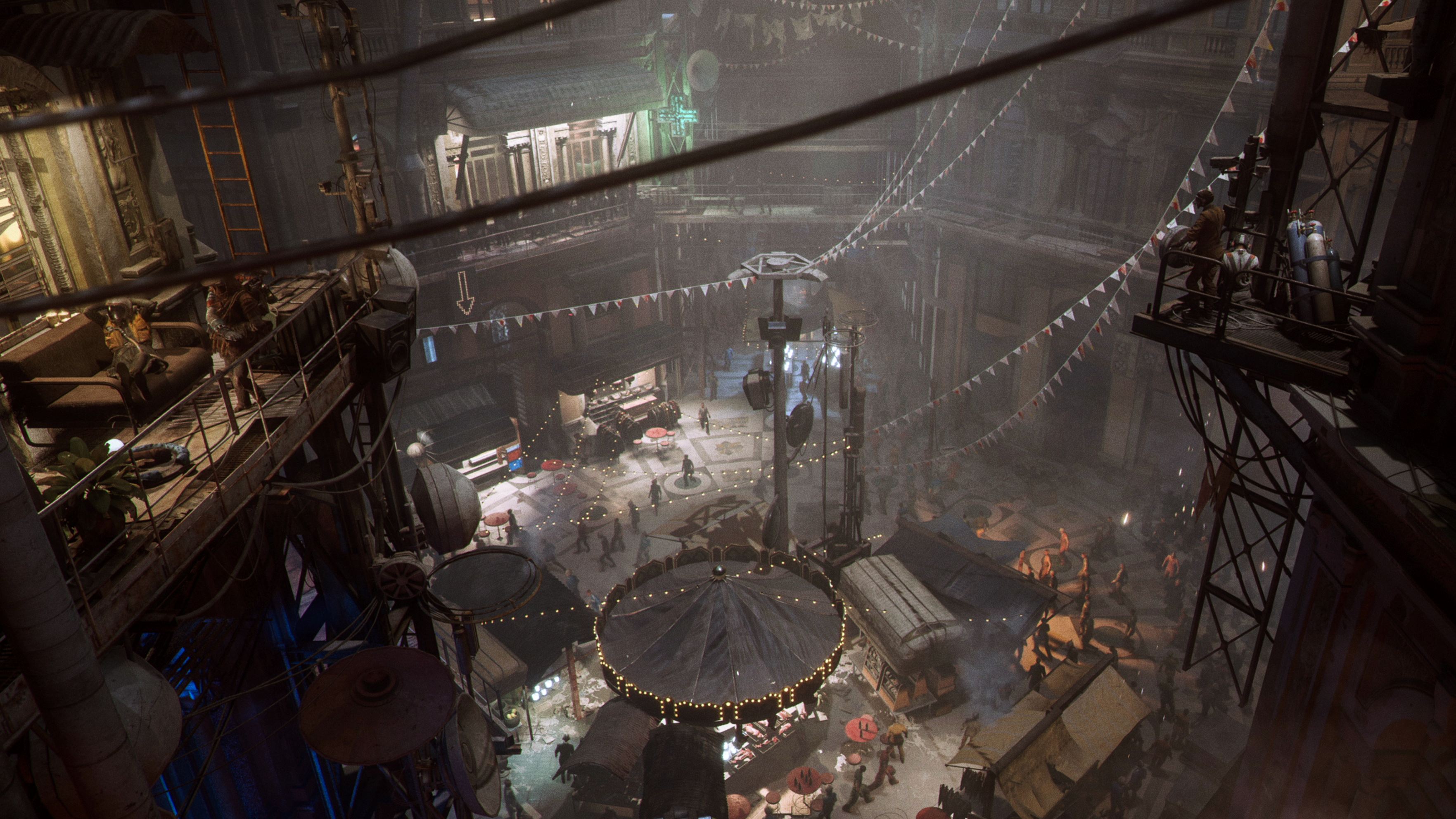
게임 플레이
아크 레이더스는 어떻게 진행되는 게임인가요?
A
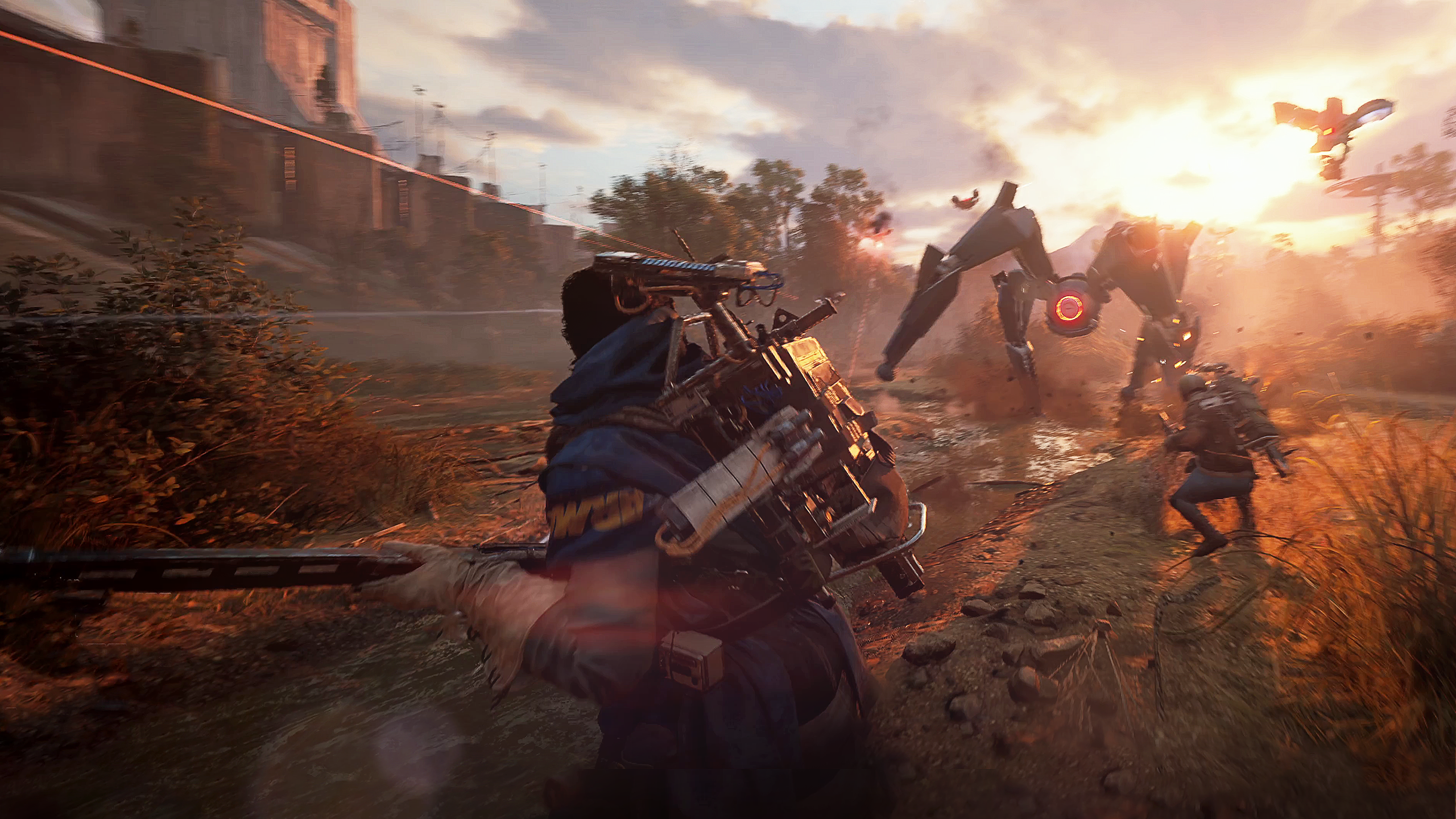
아크 레이더스는 지상에 올라가 자원을 수집하고, 전리품을 지닌 채 탈출 지점에 도달해 귀환하는 것이 핵심인 게임입니다.
당신은 지하 도시 스페란자(Speranza)의 레이더로서, 위험이 도사리는 지상으로 올라가 자원을 수집하고 임무를 수행합니다.
그 과정에서 다른 레이더와 협력하거나 경쟁하며, 정체불명의 기계 세력 ARC와 맞설 수도 있습니다.
이러한 위험과 보상의 균형 속에서 생존하고 성장하는 과정이 바로 ARC Raiders의 핵심 플레이 경험입니다.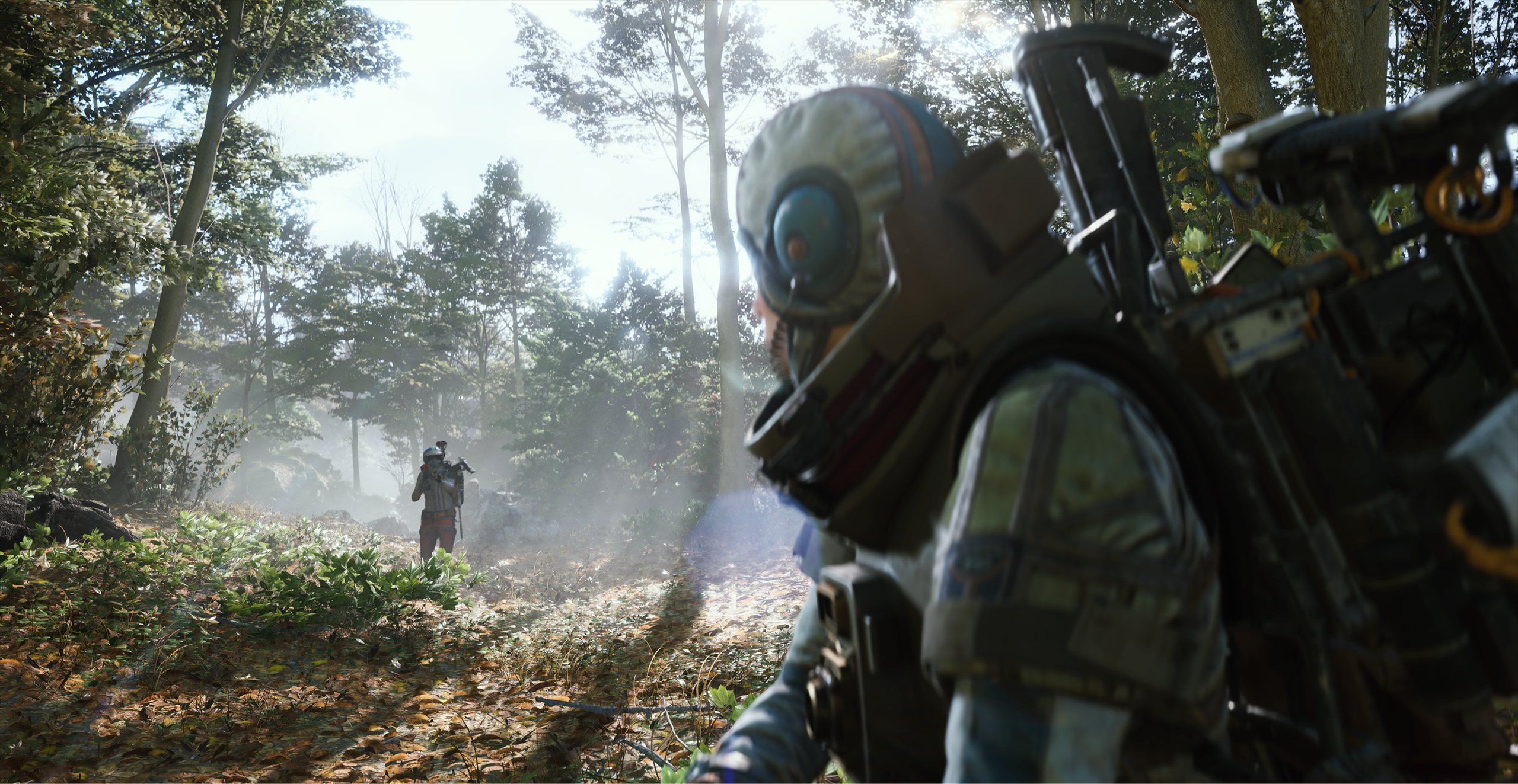
게임 플레이
탈출에 실패해서 장비를 모두 잃으면 어떻게 해야 하나요?
A
스페란자에서 제공하는 무료 로드아웃을 이용하거나, 아이템을 모아주는 닭 친구 꼬꼬의 도움을 받아 다시 시작할 수 있습니다.
꼬꼬는 레이더의 신뢰할 수 있는 동료로, 아이템을 수집하는 습관을 가지고 있습니다.
훈련시키거나 꾸미기 아이템을 입혀 감사의 마음을 표현해 보세요.
게임 플레이
아크 레이더스의 탐험 지역에는 어떤 곳이 있나요?
A
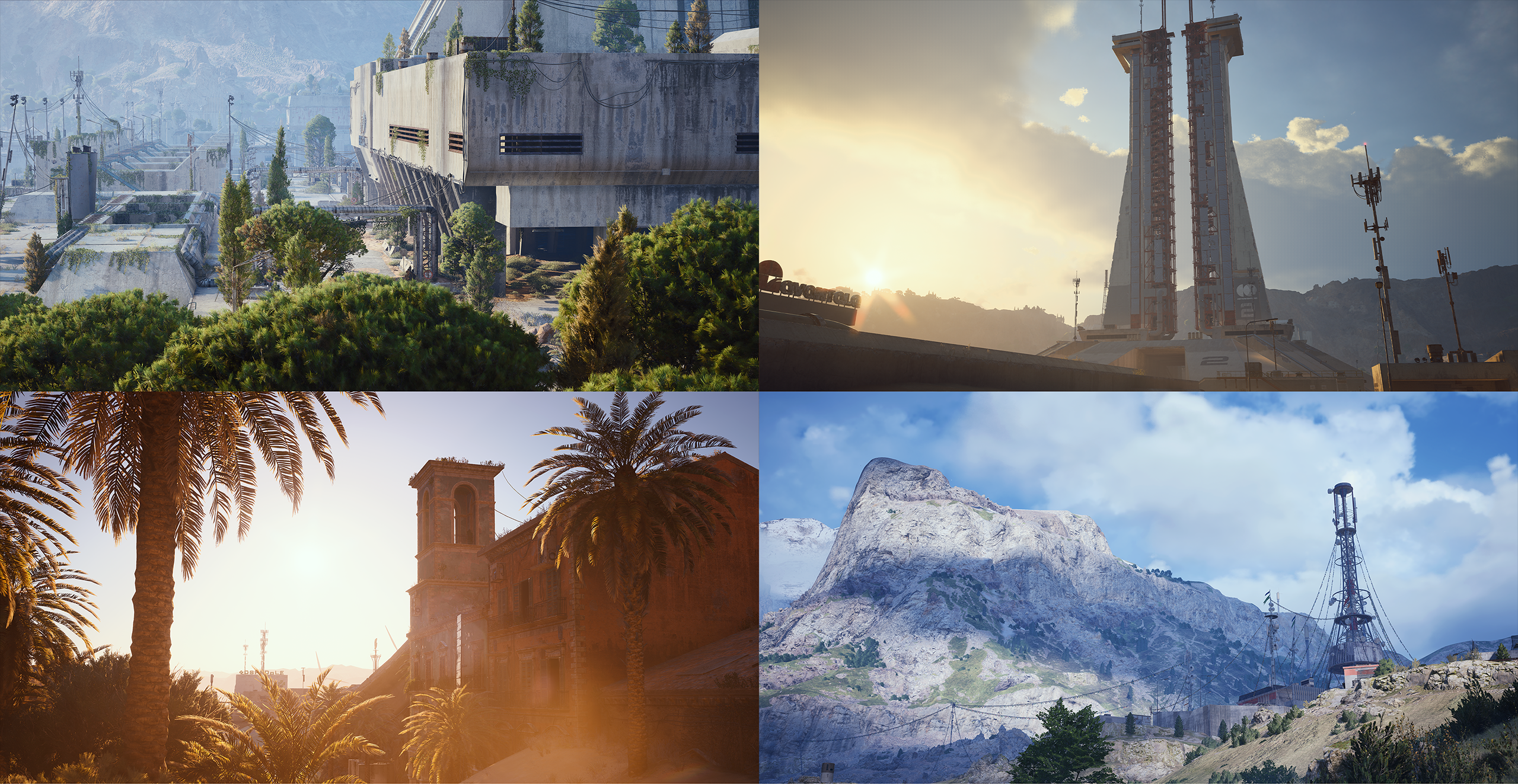
탐험 지역은 통칭 '러스트 벨트'라 불리며, 댐 전장·파묻힌 도시·우주 기지·블루 게이트, 스텔라 몬티스, 갈라진 물결 등 6개의 주요 지역과 전장이 존재합니다.
• 댐 전장: 숲, 늪, 연구시설, 아파트 건물
• 파묻힌 도시: 모래에 덮인 붕괴된 도시
• 우주 기지: 낡은 발사 기지
• 블루 게이트: 산악 지대, 터널, 마을, 지하 시설
• 스텔라 몬티스: 연구시설, 엑소더스
• 갈라진 물결: 해안 지대, 항구
• 댐 전장: 숲, 늪, 연구시설, 아파트 건물
• 파묻힌 도시: 모래에 덮인 붕괴된 도시
• 우주 기지: 낡은 발사 기지
• 블루 게이트: 산악 지대, 터널, 마을, 지하 시설
• 스텔라 몬티스: 연구시설, 엑소더스
• 갈라진 물결: 해안 지대, 항구
시스템 · 설정
아크 레이더스의 최소 사양과 권장 사양은 어떻게 되나요?
A
아크 레이더스는 Windows 10 64비트 이상, 최소 GTX 1050 Ti·12GB RAM, 권장 RTX 2070·16GB RAM 사양에서 플레이할 수 있습니다.
| 구분 | 최소 사양 | 권장 사양 |
|---|---|---|
| 운영체제 | Windows 10 or later 64-bit (latest update) | Windows 10 or later 64-bit (latest update) |
| 프로세서 | Intel Core i5-6600K or AMD Ryzen R5 1600 processor | Intel Core i5-9600K or AMD Ryzen 5 3600 processor |
| 메모리 | 12 GB RAM | 16 GB RAM |
| 그래픽 | NVIDIA GeForce GTX 1050 Ti or AMD Radeon RX 580 | NVIDIA GeForce RTX 2070 or AMD Radeon RX 5700 XT |
| DirectX | Version 12 | Version 12 |
게임 플레이
아크 레이더스의 원정 프로젝트는 무엇인가요?
A
원정 프로젝트는 20레벨 도달 시 해제되는 기능으로, 진행도를 초기화하고 새롭게 시작하는 시점을 스스로 선택할 수 있는 시스템입니다.
강제로 진행되는 초기화가 아니라 새로운 여정을 언제 시작할지 직접 결정하는 구조이며, 일부 보상과 장기 진행 요소는 유지하면서 깔끔하게 다시 시작할 수 있습니다.
진행 방식
각 원정 주기는 8주 동안 진행됩니다. 첫 7주 동안은 자원을 모으고 필요한 단계를 완료하며 원정을 준비하고, 8주 차에는 프로젝트 완료 기간이 열려 해당 주 내내 완료할 수 있습니다. 완료 기간 내에 끝내지 못해도 다음 완료 기간까지 계속 진행할 수 있습니다.
초기화되는 항목
• 레벨, 스킬, 경험치
• 인벤토리, 보관함 아이템, 제작 진행도
유지되는 항목
• 꾸미기 아이템 및 구매한 아이템
• 레이더 토큰 및 평판 점수
• 레이더 덱 진행도
• 코덱스 항목 및 잠금 해제된 지도
• 이전 원정에서 획득한 원정 보너스
혜택 및 보너스
원정을 완료하면 계정 전체에 적용되는 지속적인 혜택을 받게 됩니다.
• 각 원정 완료 시 제공되는 고유 꾸미기 보상
• 다음 원정 주기 동안 적용되는 계정 버프 (연속 완료 시 일정 한도까지 점차 강화)
강제로 진행되는 초기화가 아니라 새로운 여정을 언제 시작할지 직접 결정하는 구조이며, 일부 보상과 장기 진행 요소는 유지하면서 깔끔하게 다시 시작할 수 있습니다.
진행 방식
각 원정 주기는 8주 동안 진행됩니다. 첫 7주 동안은 자원을 모으고 필요한 단계를 완료하며 원정을 준비하고, 8주 차에는 프로젝트 완료 기간이 열려 해당 주 내내 완료할 수 있습니다. 완료 기간 내에 끝내지 못해도 다음 완료 기간까지 계속 진행할 수 있습니다.
초기화되는 항목
• 레벨, 스킬, 경험치
• 인벤토리, 보관함 아이템, 제작 진행도
유지되는 항목
• 꾸미기 아이템 및 구매한 아이템
• 레이더 토큰 및 평판 점수
• 레이더 덱 진행도
• 코덱스 항목 및 잠금 해제된 지도
• 이전 원정에서 획득한 원정 보너스
혜택 및 보너스
원정을 완료하면 계정 전체에 적용되는 지속적인 혜택을 받게 됩니다.
• 각 원정 완료 시 제공되는 고유 꾸미기 보상
• 다음 원정 주기 동안 적용되는 계정 버프 (연속 완료 시 일정 한도까지 점차 강화)
게임 플레이
아크 레이더스에서 다른 레이더와는 어떻게 소통하나요?
A
레이더들과 소통하는 방법은 여러 가지가 있습니다.
핑 시스템
스쿼드로 플레이할 때 핑 시스템을 사용해 오브젝트, 위치, ARC, 다른 플레이어를 표시하고 팀원과 협력할 수 있습니다. 원하는 대상에 커서를 맞추고 다음 입력을 사용합니다(기본 설정 기준).
• PC: 마우스 휠 버튼
• PlayStation 및 Xbox: R1 / RT
원한다면 설정에서 입력 방식을 자유롭게 변경할 수 있습니다.
음성 채팅
게임 내 음성 채팅을 활성화하려면 설정 > 오디오 > 음성 채팅 > 음성 채팅 활성화를 순서대로 선택합니다. 이곳에서 채팅 모드를 선택해 오픈 마이크 또는 눌러서 말하기 중 원하는 방식을 설정할 수 있습니다. 근접 음성 채팅도 동일한 방식으로 설정할 수 있습니다. 근접 음성 채팅을 사용하면 스쿼드 외 레이더와도 대화할 수 있어, 다른 레이더를 설득해 협력자로 만들 수 있습니다.
레이더 보이스 (베타)
레이드 중 목소리를 다르게 바꾸고 싶으신가요? 레이더 보이스를 사용하면 음성 채팅에서 본인 목소리가 들리는 방식을 변경할 수 있습니다. 더 낮게 또는 더 밝게 등 원하는 분위기에 맞게 조정할 수 있습니다.
레이더 보이스는 파티 음성 채팅과 근접 음성 채팅 모두에 적용하거나, 근접 음성 채팅에만 적용할 수도 있습니다.
레이더 보이스 활성화 방법:
1. 설정 메뉴를 엽니다.
2. 오디오 항목으로 이동합니다.
3. 레이더 보이스 (베타)를 선택합니다.
4. 원하는 음성 설정을 고른 뒤 저장합니다.
이제 본인 스타일에 맞는 목소리로 다음 모험을 떠날 준비가 되었습니다.
문제 해결
아크 레이더스 플레이 중 게임이 자꾸 튕겨요(크래시). 어떻게 해결하나요?
A
아크 레이더스 크래시는 대부분 구버전 그래픽 드라이버, 구버전 DirectX, 구버전 Windows가 원인이며, 세 가지를 최신 버전으로 업데이트하면 해결할 수 있습니다.
구버전 드라이버
구버전 또는 호환되지 않는 드라이버, 특히 그래픽 드라이버는 PC 게임 크래시의 가장 흔한 원인 중 하나입니다.
업데이트가 필요한 항목:
• GPU(그래픽 카드)
• CPU
• 메인보드 / BIOS
• 모니터
• Wi-Fi 어댑터 / 네트워크 카드 / 모뎀
• 주변기기(마우스, 키보드 등)
그래픽 카드 확인 방법
1. Windows 키 + R을 눌러 실행 창을 엽니다.
2. dxdiag를 입력하고 Enter를 누릅니다.
3. [디스플레이] 탭으로 이동합니다.
4. 그래픽 카드 이름과 제조사를 확인할 수 있습니다.
GPU 드라이버 업데이트 방법
사용 중인 GPU 브랜드에 따라 다음 도구 또는 웹사이트를 통해 드라이버를 업데이트할 수 있습니다.
• AMD Auto-Detect Tool
• Intel Driver & Support Assistant
• NVIDIA GeForce Experience
이 도구들은 하드웨어를 자동으로 감지하고 최신 드라이버를 제공합니다.
구버전 DirectX
DirectX는 게임과 GPU, 키보드, 스피커 등 하드웨어 간의 통신을 담당합니다. DirectX가 최신 버전이 아니면 다음 문제가 발생할 수 있습니다.
• 게임 크래시
• 입력 지연 또는 조작 무반응
• 오디오 끊김
DirectX 업데이트 방법:
Microsoft에서 최신 DirectX를 직접 설치할 수 있습니다. [Microsoft DirectX 업데이트]
구버전 운영체제
Windows 버전이 오래된 경우 게임 성능과 호환성에 문제가 발생할 수 있습니다.
Windows 업데이트 방법:
1. 시작 버튼(Windows 아이콘)을 클릭합니다.
2. 설정(톱니바퀴 아이콘)을 선택합니다.
3. [업데이트 및 보안]으로 이동합니다.
4. [업데이트 확인]을 클릭합니다.
업데이트 설치 후 PC를 재부팅하세요.
문제가 계속되나요?
위 방법을 모두 시도했는데도 충돌이 지속될 경우 다음을 시도해 보세요.
• Steam에서 게임 파일 무결성 검사
• ARC Raiders 재설치
• 오버레이 또는 서드파티 소프트웨어 비활성화
• 추가 지원이 필요하면 고객지원팀에 문의
문제 해결
아크 레이더스에서 연결이 끊기거나 네트워크 오류가 발생하면 어떻게 해결하나요?
A
서버 설정을 [자동]으로 맞추고, 유선 연결 사용 → 네트워크 문제 해결사 실행 → 공용 DNS 변경 → IP 갱신 순서로 점검하면 대부분의 연결 문제를 해결할 수 있습니다.
매치메이킹 지역 확인
올바른 지역에서 매치메이킹되고 있는지 확인하세요.
PC:
1. 화면 오른쪽 하단의 톱니바퀴 아이콘을 클릭합니다.
2. [게임플레이] > [서버]로 이동합니다.
3. [자동]으로 설정합니다.
콘솔:
1. 소셜 메뉴를 엽니다.
2. 화면 왼쪽의 톱니바퀴 아이콘으로 이동합니다.
3. [게임플레이] > [서버]를 선택합니다.
4. [자동]으로 설정합니다.
시스템 및 연결 요구 사항 확인
• PC가 최소 시스템 요구 사양을 충족하는지 확인합니다.
• 가능하면 안정적이고 빠른 인터넷 연결을 사용합니다.
• Wi-Fi보다 유선(이더넷) 연결을 권장합니다.
불안정한 연결은 다양한 문제를 유발할 수 있습니다. 아래 단계별 가이드를 따라 해결해 보세요.
단계별 연결 문제 해결 방법
1. 기본 점검
• Wi-Fi가 켜져 있고 올바른 네트워크(SSID)에 연결되어 있는지 확인합니다.
• 비밀번호가 정확한지 다시 확인합니다.
• 더 안정적인 연결을 위해 유선 연결로 전환해 보세요.
• VPN이나 프록시는 게임 플레이에 영향을 줄 수 있으므로 꼭 필요한 경우가 아니라면 사용을 피하세요.
• Windows 운영체제가 최신 버전인지 확인합니다. [설정] > [업데이트 및 보안] > [Windows 업데이트]로 이동하여 [업데이트 확인]을 선택합니다.
2. 네트워크 문제 해결사 사용 (Windows)
Windows에는 네트워크 문제를 감지하고 해결하는 기본 제공 도구가 있습니다.
• [설정] > [네트워크 및 인터넷] > [상태]로 이동합니다.
• [고급 네트워크 설정]을 선택합니다.
• [네트워크 문제 해결사]를 선택합니다.
• 사용 중인 네트워크 연결을 선택하고 화면 안내에 따라 진행합니다.
Windows가 문제를 검사하여 자동으로 해결하거나 해결 방법을 안내합니다.
3. 공용 DNS 서버로 변경
공용 DNS 서버를 사용하면 속도와 연결 안정성이 향상될 수 있습니다.
Google Public DNS:
• 기본: 8.8.8.8
• 보조: 8.8.4.4
Cloudflare DNS:
• 기본: 1.1.1.1
• 보조: 1.0.0.1
네트워크 어댑터 설정에서 DNS 주소를 변경할 수 있습니다.
4. IP 주소 갱신
IP 주소를 재설정하면 연결 문제가 해결될 수 있습니다.
1) 모든 브라우저와 애플리케이션을 종료합니다.
2) Windows 키를 누르고 CMD를 입력하여 명령 프롬프트를 실행합니다.
3) 다음 명령어를 순서대로 입력하고 각각 Enter를 누릅니다.
• ipconfig /release
• ipconfig /renew
• ipconfig /flushdns
4) PC를 재부팅합니다.
5. P2P 업데이트 비활성화 (Windows 10)
Windows 업데이트 공유 기능은 네트워크 속도를 저하시킬 수 있습니다.
비활성화 방법:
• 시작 메뉴에서 [설정]을 엽니다.
• [업데이트 및 보안]을 선택합니다.
• 왼쪽 메뉴에서 [Windows 업데이트]를 선택합니다.
• [고급 옵션]을 클릭합니다.
• [배달 최적화]를 선택합니다.
• [다른 PC에서 다운로드 허용]을 [끔]으로 설정합니다.
이렇게 하면 게임 중 백그라운드 Windows 업데이트로 인해 대역폭이 사용되는 것을 방지할 수 있습니다.